
You strap on your headset, load up your favorite title and instead of stepping into another world. You get stutter, ghosting and a queasy feeling behind your eyes. It has a frustrating moment and it usually has nothing to do with how much you spent on your machine.
Most laptops that struggle with virtual reality aren’t underpowered. Many of the same optimization techniques also apply to modern mini computers with Windows 11 when they’re used for gaming or lightweight VR applications. They’ve misconfigured. Learning how to optimize gaming laptop for VR has really about removing the hidden bottlenecks. Thermal limits, power settings, background clutter and driver issues. That quietly rob your system of the performance it already has.
Why VR Pushes Laptops Harder
Traditional gaming render one image at one frame rate. VR renders two images and one for each eye and it needs to hit 90 frames per second or higher without missing a beat. Drop below that threshold and the experience stops feeling smooth and starts feeling nauseating.
This doubled workload means your GPU, CPU and cooling system all have to work harder and more consistently than they would for flat screen gaming. A laptop handles AAA titles at 60 fps just fine how still choke in VR if it isn’t tuned correctly.
Check Your Hardware Is Actually VR-Ready
Before touching a single setting, confirm your laptop clears the baseline. Skipping this step is the number one reason optimization efforts fail — software tweaks can’t fix a GPU that’s simply too weak.
| Component | Minimum | Recommended |
| GPU | RTX 3060 | RTX 4070 or higher |
| CPU | Intel i5 / Ryzen 5 (recent gen) | Intel i7 / Ryzen 7 |
| RAM | 16GB | 32GB |
| Storage | 512GB SSD | 1TB NVMe SSD |
| Ports | USB 3.0, DisplayPort | USB-C with DisplayPort Alt Mode |
Run a free benchmarking tool as the SteamVR Performance Test to get an objective. Where your system stands. It saves hours of guesswork later.
Update Drivers, Firmware and Windows First
Outdated software is behind a surprising share of VR complaints. Graphics drivers in particular get regular VR specific fixes, so running an old version can undo every other optimization you make. If you’re installing older GPU or VR headset drivers, you may occasionally need to disable DSE Windows 11 to allow unsigned drivers.
Grab the latest Game Ready or WHQL driver directly from NVIDIA or AMD then check your laptop manufacturer’s site for chipset and BIOS updates. Finish with a full Windows Update pass including optional quality updates and restart before testing anything. Keeping Windows 11 fully updated also ensures you receive the latest security and performance improvements.
Switch to High-Performance Power Settings
Gaming laptops ship tuned for battery life by default which is the opposite of what VR needs. Left on a balanced profile, your CPU and GPU may never reach the clock speeds required for a stable frame rate.
Plug in your laptop, open Windows Power Options and select the High Performance plan. Then head into the advanced settings and set the minimum processor state to 100 percent and disable PCI Express power management, since both can introduce tiny stutters during headset tracking.
Manage Heat Before It Manages You
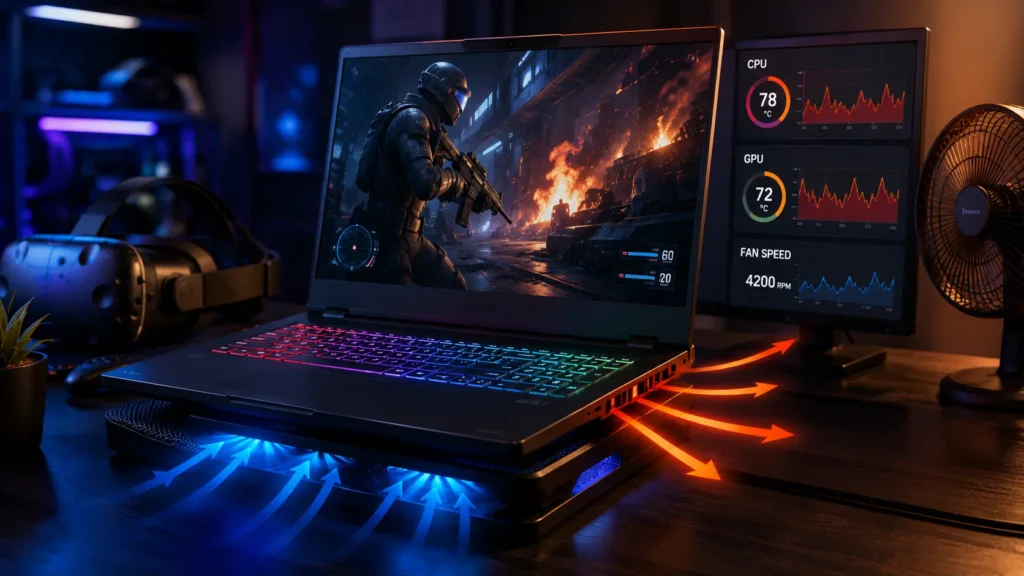
Thermal throttling has the silent performance killer in VR. When your CPU or GPU hits its temperature ceiling. The system automatically slows itself down to protect the hardware and that shows up as sudden frame drops mid session.
A few practical fixes go a long way here
- Use the laptop on a hard and flat surface. So intake vents stay clear
- Add a cooling pad to pull an extra 5 to 10 degrees Celsius off sustained loads
- Clean dust from fans and heatsinks with compressed air every month
- Consider a repaste or phase change thermal pad if temperatures stay above 90°C under load
- Slightly undervolt the CPU and GPU to lower heat without sacrificing clock speed
Signs Your Laptop Is Thermal Throttling in VR
- Frame rate drops after 10 to 15 minutes but starts fine
- Fan noise spikes right before a stutter
- Temperatures read above 85°C during a stress test
- Performance improves noticeably in a cold room
Close Background Apps That Steal Resources
VR needs every available CPU cycle and every megabyte of RAM it have get. A browser with thirty open tabs, a chat app or RGB lighting software running in the background can quietly eat into the headroom your headset needs.
Open Task Manager before every session and shut down anything nonessential. Cloud sync tools, game launchers you aren’t using and especially any overlay software. This single habit resolves a large share of random micro-stutters.
Fine-Tune Your VR Platform Settings
SteamVR, Meta Quest Link and similar platforms all include render resolution and refresh rate controls that directly affect performance. Pushing resolution too high for your hardware has one of the most common mistakes people make when trying to optimize a gaming laptop for VR.
Start with render resolution around 90 to 100 percent and test a demanding scene and adjust from there. If your headset supports both 72Hz and 90Hz and dropping to 72Hz can restore smoothness on borderline systems without a huge visual downgrade. Motion smoothing. Meanwhile, it helps interpolate frames when your GPU can’t quite keep pace. Though it’s worth testing with it both on and off since results vary by title.
Adjust In-Game Graphics the Smart Way
Not every setting costs the same amount of performance. Shadows, reflections and post processing effects like bloom and motion blur are expensive and rarely noticeable in VR, so they’re the first things to lower.
Texture quality is different — keep it as high as your VRAM allows, since dropping it can actually cause stutter from constant texture streaming. Anti-aliasing is worth keeping on a moderate setting too, since VR’s stereo rendering makes jagged edges more distracting than in flat games.
Upscaling Technology Is Your Best Friend
DLSS, FSR and XeSS render frames at a lower internal resolution. Use AI or spatial upscaling to reconstruct detail. Often boosting frame rates by 30 to 50 percent with minimal visible quality loss. If your GPU supports one of these and turning it on has one of the highest impact changes available. Advances in the latest technology continue to improve AI-powered upscaling and gaming performance with every new GPU generation.
Many VR titles now include native support in their graphics menu. For older or unsupported games, community mods can inject upscaling into almost any SteamVR title giving budget and mid-range laptops a meaningful performance boost.
Don’t Overlook Your Network for Wireless VR
If you’re using Air Link, Virtual Desktop or a similar wireless setup, your Wi-Fi matters as much as your GPU. Congested networks and weak signals introduce compression artifacts and input lag that no amount of graphics tuning will fix.
| Setting | Recommended Value |
| Band | 5GHz or 6GHz |
| Channel | Non-DFS (36, 40, or 44) |
| Router placement | Above head height, clear line of sight |
| Wired backhaul | Ethernet to router when possible |
Wired Link cables remain the most reliable option if latency issues persist despite a solid network setup.
Monitor, Test and Repeat
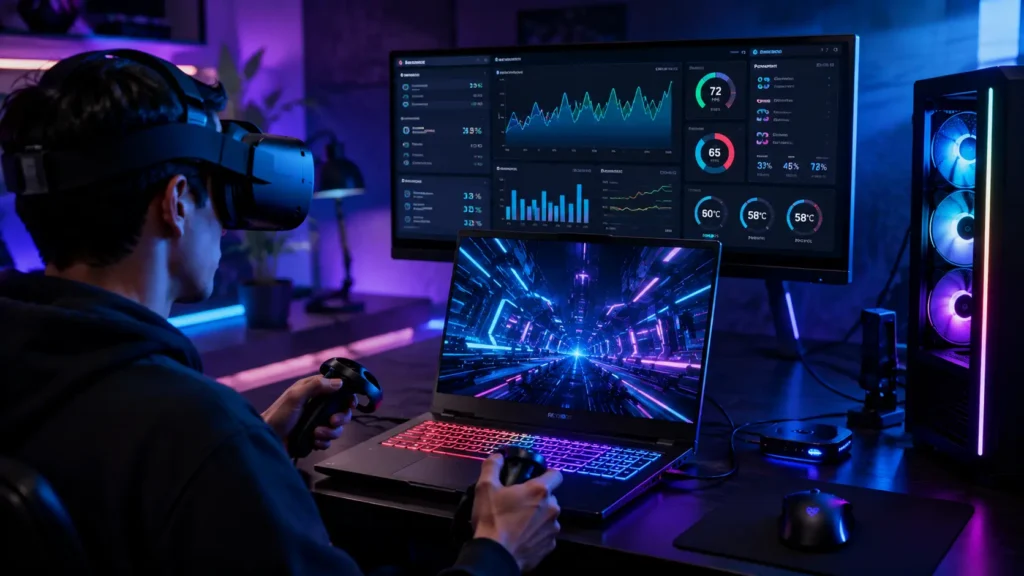
Optimization works best as a cycle not a one time task. Use an overlay tool to track FPS, frame time, GPU usage and temperature that you play. Then change one setting at a time and retest so you actually know what helped.
Aim for GPU usage sitting near 95 to 100 percent, since that means your graphics card as not your CPU like is the limiting factor. Which has exactly where you want the bottleneck to be in VR.
Final Thoughts
Getting smooth and comfortable VR out of a gaming laptop rarely comes down to buy new hardware. It comes down to method as verifying your specs keeping thermals under control, trimming background clutter and dialing in the right software settings for your specific headset. Once you understand how to optimize gaming laptop for VR properly. Even a mid range machine can deliver an experience that feels stable, immersive and genuinely enjoyable session after session.
FAQs
How to optimize a laptop for VR?
Update your GPU drivers and Windows. Witch to High Performance power mode and keep the laptop plugged in. Close background apps manage heat with a cooling pad, lower demanding in game settings like shadows and reflections and enable DLSS or FSR if supported. Test with a performance overlay and adjust settings one at a time.
Can a gaming laptop handle VR?
Yes, most modern gaming laptops handle VR well if they meet minimum specs as an RTX 3060 or better and a recent 6 core CPU and 16GB of RAM. Performance depends less on raw power and more on proper cooling and updated drivers and correct power settings then the main cause of poor VR performance on laptops.
What is the 20-20-20 rule for VR?
The 20-20-20 rule has an eye strain guideline as every 20 minutes. Look at something roughly 20 feet away for at least 20 seconds. Since VR headsets keep your eyes focused at a fixed close distance. This habit gives your eyes a break and helps reduce fatigue and discomfort during long sessions.
Is 32GB of RAM enough for VR?
Yes, 32GB has more than enough for VR and covers. Even mod heavy titles or heavy multitasking. Most VR games run fine on 16GB and 32GB reduces stutter from texture streaming. It gives headroom for background apps. Like Discord or streaming software without affecting performance.