
Opening a simple settings page shouldn’t feel like breaking into a vault yet that’s exactly what happened to many Windows 11 users after a routine update landed on their machines. Recent Windows security updates continue to change how software applications handle administrative access and system protection. One day Storage settings loaded instantly and the next a security prompt stood between them and their own disk usage numbers. The Windows 11 KB5074105 storage admin access change caught plenty of people off guard and it’s worth understanding exactly what shifted. Why Microsoft made the call and how it affects your day to day computing.
This hasn’t a glitch that will quietly disappear in the next patch cycle. It’s a deliberate security decision that reflects where Windows is headed and it touches home users. IT administrators and anyone who shares a PC with family, coworkers or students.
What Is KB5074105 and What Does It Actually Change?
KB5074105 has an optional preview update for Windows 11 that Microsoft released in late January 2026. Like most previews it bundled several fixes but one change stood out more than the rest as opening Settings > System > Storage. Now triggers a User Account Control prompt before the page even loads.
Previously any signed in account, administrator or standard user, could browse storage breakdowns, check disk space and review temporary file categories without any extra hurdle. That open access is gone. Now the operating system checks whether your session carries administrative rights before it will show you anything at all.
Why Microsoft Locked Down Storage Settings
Microsoft describes the move as a step toward protecting system files from unauthorized viewing. Storage settings can reveal details about update caches, recovery partitions and system reserved space and information that could otherwise help an attacker or a piece of malware map out a device.
This fits a pattern Microsoft has followed for a while. The company has been shifting more system level areas behind permission checks rather than relying only on traditional file level security. Instead of trusting every logged in session automatically, Windows now asks for proof before handing over sensitive details and a mindset commonly known as least privilege access. Similar permission-based protections are also used when you need to disable DSE Windows 11 for unsigned drivers.
The Temporary Files Cleanup Side Effect
One unintended consequence has drawn a lot of attention: the Temporary Files cleanup tool inside Storage settings stopped detecting certain cleanup categories properly. Windows Update leftovers, driver caches and a few other admin only items disappeared from that list for some users.
The likely explanation has that the scan behind Temporary Files runs without a fully elevated token so it can only see what a standard session is allowed to enumerate. Disk Cleanup the older utility still works because it runs with elevated permissions when launched that way.
If you rely on Settings to clear out Windows Update files. This is worth knowing before you assume your drive is clean when it isn’t.
How to Work Around the Storage and Cleanup Changes

A few practical steps can help you avoid confusion or wasted troubleshooting time as
- Sign in with or switch to an administrator account before opening Storage settings.
- Approve the UAC prompt when it appears rather than dismissing it since canceling blocks the page entirely.
- Use Disk Cleanup as search for “Disk Cleanup” in the Start menu and select “Clean up system files” to reach Windows Update left overs the Settings page may be missing.
- Check Settings > Windows Update > Update history to confirm KB5074105 and a later cumulative update carrying the same change has installed on your device.
- On managed or shared devices ask whoever administers the machine to approve access not than repeatedly retrying the prompt.
Who Feels This Change the Most?
Home users on a personal admin account will barely notice anything beyond one extra click. The real impact lands on shared and managed environments.
| User Type | Impact Level | What Changes |
| Solo admin account | Low | One extra UAC click, nothing blocked |
| Standard user on shared PC | High | Storage page blocked without approval |
| School or library device | High | Students can no longer browse storage details |
| Business-managed endpoint | Medium to High | Scripts and monitoring tools may need review |
| IT administrator | Medium to High | Must test automation and inventory tools |
Families sharing a single computer but school labs and workplace kiosks are the groups most likely to run into blocked access. Since these setups commonly rely on standard and nonadmin accounts for everyday use.
Is This a Bug or an Intentional Security Feature?
It has intentional. Microsoft added documentation clarifying that the prompt exists to make sure only authorized users can view system file information and the behavior has carried forward into later cumulative updates rather than being rolled back.
That said, the Temporary Files detection issue appears to be a genuine side effect rather than a planned outcome. Since Microsoft hasn’t formally documented it as an intended part of the change.
What This Means for IT Administrators
Organizations managing enterprise software should validate Windows updates before deploying them across production devices. Businesses running Windows 11 across many device need to treat this as more than a cosmetic tweak. Storage related scripts inventory tools and endpoint management platforms that used to run under standard permissions may now return incomplete data or fail silently.
Before rolling this out fleet-wide, IT teams should test the following areas:
- PowerShell scripts that query storage or disk usage
- Endpoint management and monitoring software
- Automated inventory and reporting tools
- Help desk procedures for guiding standard users through the new prompt
Piloting the update on a small group of machines first rather than deploying it organization wide immediately. Remains the safest approach with any change that touches permission models.
How This Fits Windows 11’s Broader Security Direction
This isn’t an isolated decision. Windows 11 has steadily added friction around sensitive areas over the past couple of years including changes to Smart App Control and other system level toggles. The Windows 11 KB5074105 storage admin access requirement is one more piece of that same puzzle.
The logic behind it is straightforward: reduce the amount of system information a compromised standard account or malicious background process can see without explicit human approval. Pairing interface level checks with existing NTFS permissions gives Windows a layered defense rather than a single point of failure.
Expect similar prompts to show up in other system areas over time. Since this approach lines up with where Microsoft has been steering Windows security for a while now.
Can You Disable the Admin Prompt?
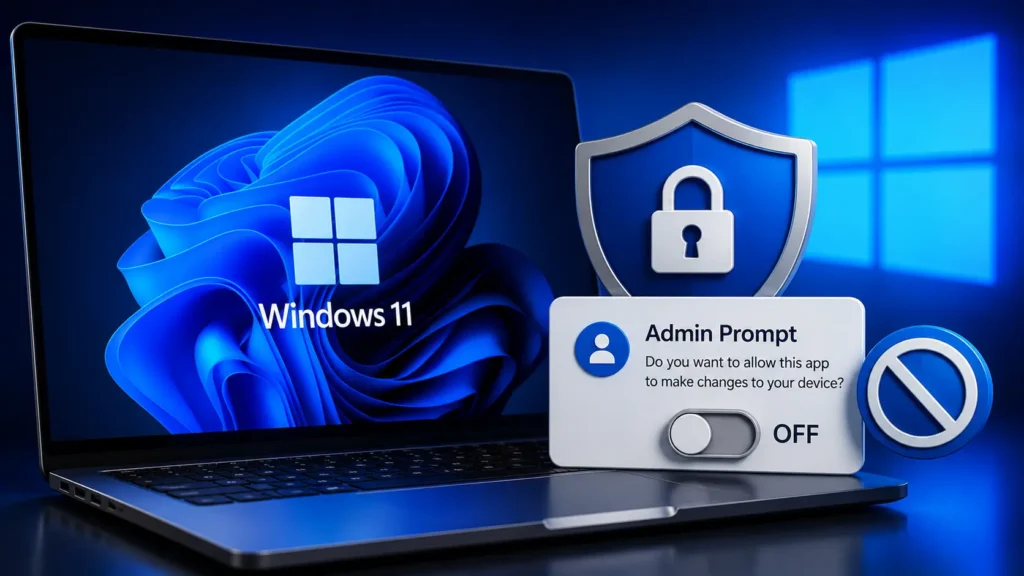
No. There’s currently no toggle, policy setting or workaround that removes the UAC requirement from Storage settings. If your account lacks administrator rights, your only options are signing in with an elevated account and getting an administrator to approve the prompt on your behalf.
Microsoft hasn’t indicated plans to bring back a read only view for standard accounts, so this restriction should be treated as permanent going forward.
Final Thoughts
The Windows 11 KB5074105 storage admin access change is a small interface adjustment with a fairly large security purpose behind it. It won’t disrupt most solo users beyond an extra click, but it meaningfully changes the experience on shared, school and business machines where standard accounts are the norm.
Pair that with the Temporary Files detection hiccup, and it’s clear this update rewards a bit of proactive checking. Confirm your account type know where to find Disk Cleanup as a backup and keep an eye on update history so you’re never caught guessing why a familiar settings page suddenly wants your permission. Keeping up with the latest Windows technology helps users understand new security changes before they affect daily workflows.
FAQs
Q: Why does KB5074105 require admin access to open Storage settings?
Microsoft added a UAC prompt so only elevated, authorized accounts can view system-level storage detailsand preventing standard accounts or malware from browsing sensitive file information.
Q: What is the biggest known issue with KB5074105?
Temporary Files cleanup no longer detects certain categories like Windows Update files because the scan runs without full elevation. Disk Cleanup still finds these files since it runs elevated.
Q: How do I download and install KB5074105?
Go to Settings > Windows Update > Check for updates and look under “Optional updates”. Since it’s a preview release that won’t install automatically unless you select it manually.
Q: What security principle is behind this Windows 11 storage change?
It follows a least-privilege, Zero Trust approach and treating access to storage internals as a privileged action rather than something every signed-in session gets by default.